|
Debian 11配置vscode,进行c/c++学习
2022年01月05日 |
|
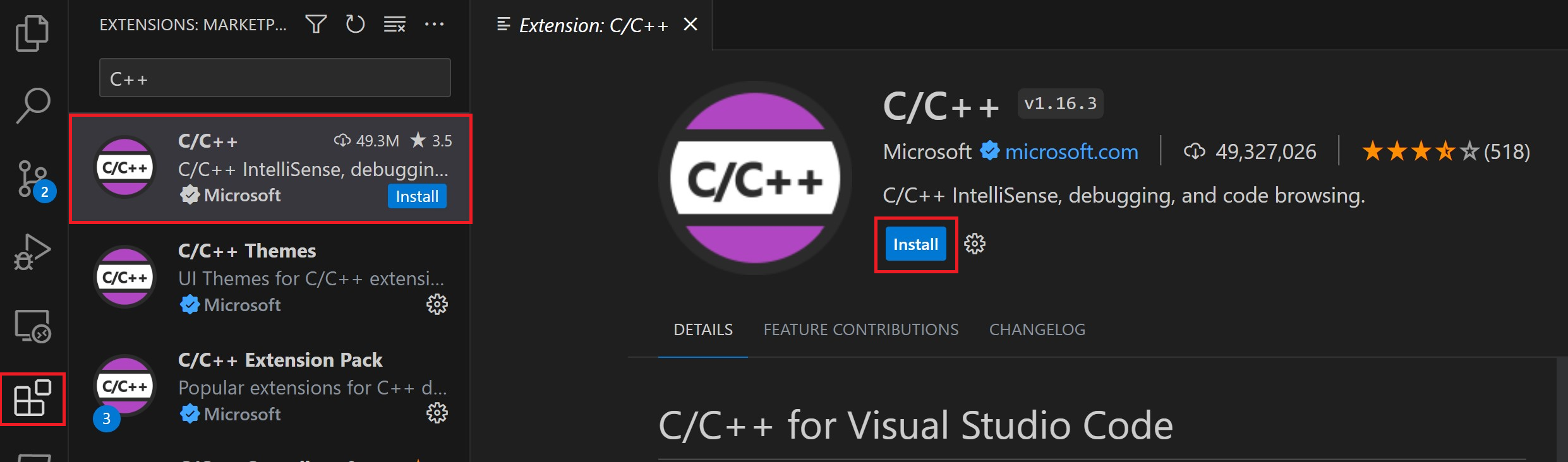
最近用Debian 11,进行C学习,想用VScode来配置环境,但是发现有很多问题。 比如g++找不到,launch file doesn’t exist。 看了网上很多教程也没搞定,全是拷贝粘贴的,所以去看了官方文档,一下子解决了,这里记录一下,仅供参考 官方文档:https://code.visualstudio.com/docs/cpp/config-linux 主要参考了官方文档进行汉化,调整 1、安装必要软件插件 1、安装 Visual Studio Code. 直接下载,然后安装即可,参考命令:sudo dpkg -i ****.deb 2、安装 C++ extension for VS Code. 在插件里面搜索即可,或者按Ctrl+Shift+X 3、安装gcc,gdb
可以通过这个命令来判断是不是安装了gcc,查看gcc的版本
gcc -v
没装的话,可以用下面的命令来装一下
sudo apt-get update
sudo apt-get install gcc
然后安装gdb和build-essential
sudo apt-get install build-essential gdb
2、 创建Hello World通过以下命令可以创建projects目录,helloworld目录
mkdir projects
cd projects
mkdir helloworld
cd helloworld
code .
创建helloworld程序
(官方用的是C++程序演示,个人用的是C程序,helloworld.c,演示上没什么大区别,就不改了) 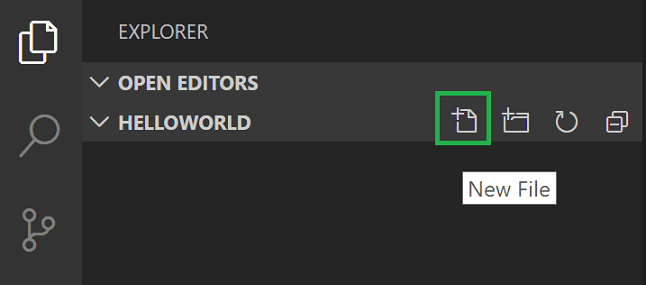 拷贝下面的示例程序,到刚才的文件里面
#include <iostream>
#include <vector>
#include <string>

using namespace std;

int main()
{
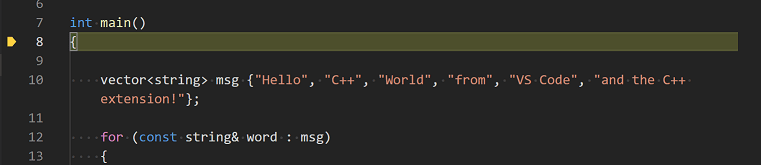
    vector<string> msg {"Hello", "C++", "World", "from", "VS Code", "and the C++ extension!"};

    for (const string& word : msg)
    {
        cout << word << " ";
    }
    cout << endl;
}
Ctrl+S 保存 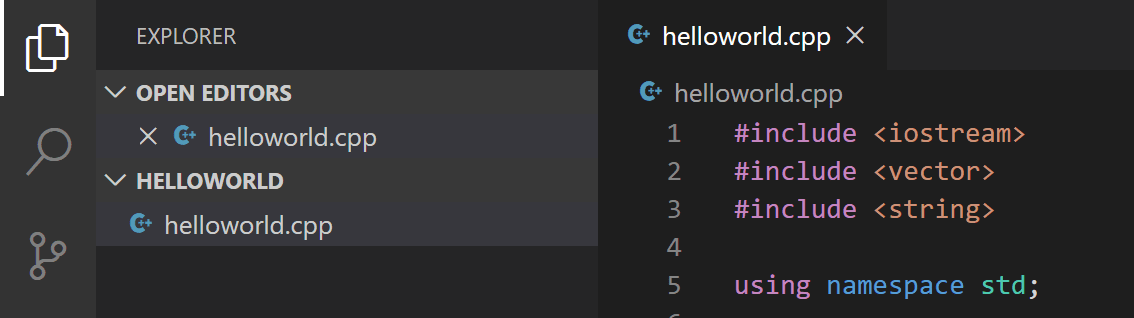 IntelliSense似乎是vscode的一个扩展优化工具,方便看代码的,了解的不多,有兴趣的话可以看一下官方的说明 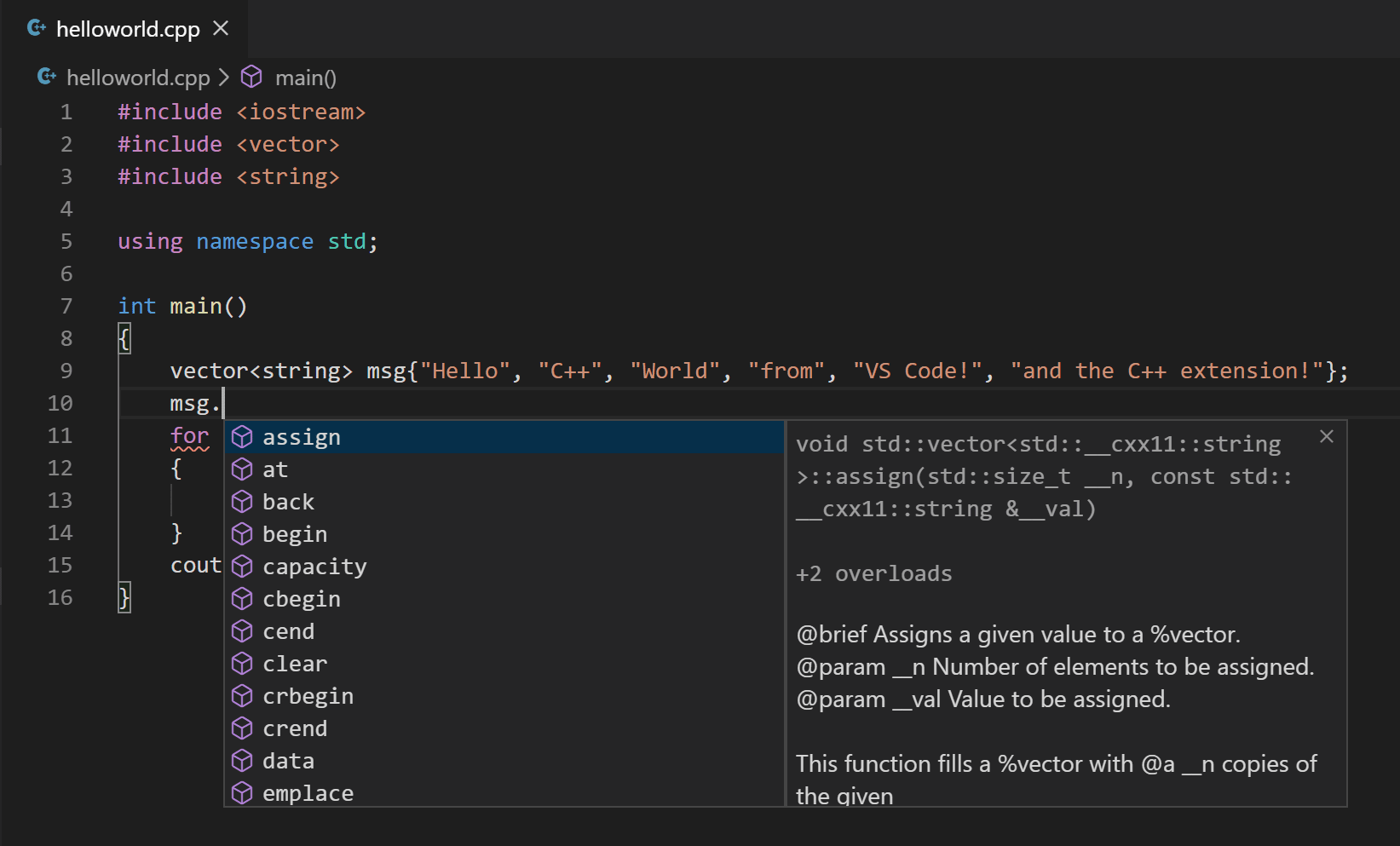 Build helloworld.cpp#
程序这个时候必须要在编辑框里,待会会调用编辑框里的程序来生成可执行文件 菜单栏选择Terminal > Configure Default Build Task,然后选择 C/C++: g++ build active file. 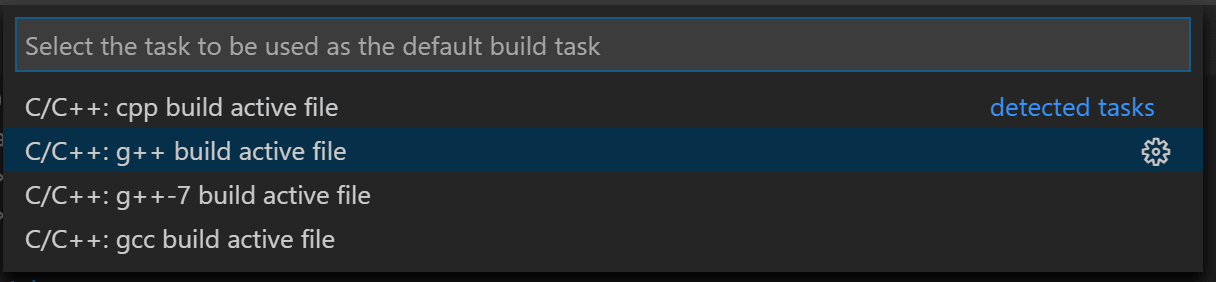 然后会自动创建一个 应该类似下面的内容
{
  "version": "2.0.0",
  "tasks": [
    {
      "type": "shell",
      "label": "g++ build active file",
      "command": "/usr/bin/g++",
      "args": ["-g", "${file}", "-o", "${fileDirname}/${fileBasenameNoExtension}"],
      "options": {
        "cwd": "/usr/bin"
      },
      "problemMatcher": ["$gcc"],
      "group": {
        "kind": "build",
        "isDefault": true
      }
    }
  ]
}
这个文件内容就是告诉g++去拿到打开的文件 (
即使设成了false,也可以通过菜单栏的Tasks: Run Build Task进行执行 build

修改tasks.json可以通过修改 Debug helloworld.cpp#然后要创建一个 点击Run > Add Configuration… 然后选择C++ (GDB/LLDB). 在debug配置里面选择g++ build and debug active file. 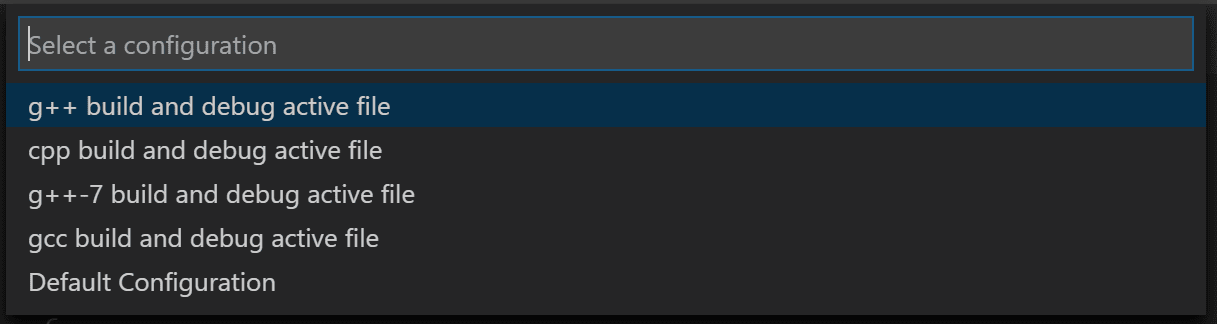 VS Code
{
  "version": "0.2.0",
  "configurations": [
    {
      "name": "g++ build and debug active file",
      "type": "cppdbg",
      "request": "launch",
      "program": "${fileDirname}/${fileBasenameNoExtension}",
      "args": [],
      "stopAtEntry": false,
      "cwd": "${workspaceFolder}",
      "environment": [],
      "externalConsole": false,
      "MIMode": "gdb",
      "setupCommands": [
        {
          "description": "Enable pretty-printing for gdb",
          "text": "-enable-pretty-printing",
          "ignoreFailures": true
        }
      ],
      "preLaunchTask": "g++ build active file",
      "miDebuggerPath": "/usr/bin/gdb"
    }
  ]
}
默认情况下 C++ 插件 不会在程序里面创建任何断点,而且 想要在定义的位置让程序停下来,需要将 开始debug
在程序里面跳转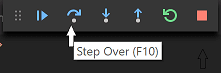 根据官方文件进行的说明,减去了一部分东西,仅供参考,有问题的话可以联系我,或者直接查看官方文档 |

 皖公网安备 34162302000199号